
How to Place an Order on Behalf of a Customer in WooCommerce
Wholesale orders arrive as phone calls, spreadsheets and photos of handwritten lists, and somebody on your side has to type them into WooCommerce. Here are the four ways to do that, what each one gets wrong, and how to set up the fastest.
Most wholesale shops do not lose orders at the checkout. They lose them in the gap between a customer saying what they want and somebody on your side typing it into WooCommerce.
That gap is what this guide is about. It compares the four ways to place an order on behalf of a customer in WooCommerce: the native manual order screen, shop as customer plugins, B2B suites with sales agents, and ordering for a customer from a quick order grid. It says plainly what each one gets wrong. Then it sets up the fastest of the four, with screenshots, and the details that decide whether the order comes out right: whose prices, whose tax, whose stock.
Your orders arrive as conversations, not as checkouts
Run a wholesale, distribution or trade business and order intake looks nothing like retail. A buyer rings while walking the stockroom with a clipboard. A purchasing manager emails the same spreadsheet every Monday. A rep at a trade fair gets a WhatsApp photo of a handwritten list. Somebody says "the usual, but double the beanies" and hangs up.
None of that is a checkout. Each one has to become a WooCommerce order, typed in by a person on your payroll. A sales rep, or somebody in customer service. Not the customer.
Why your customers will not simply order themselves
Telling them to use the website has been tried. It rarely sticks, and the reason is not laziness. They have a negotiated price and want to see that price, with their quantity break, not the public one. They buy through a rep who knows their shelves and their payment terms. Forty lines across sizes and colours is misery one product page at a time. Their purchasing process wants an email they can forward to accounts. And phoning it in has worked for fifteen years.
So the practical question is not how to push customers into self service. It is how your team enters their orders fast and correctly, in the customer's name, at the customer's prices.
What manual order entry really costs
Say a team takes 20 orders a day at 15 lines each. That is 300 lines a day, typed by hand, and usually twice: once into a note while the customer is on the line, then again into the shop. The bill arrives in five places.
Time, first. Copying SKUs and quantities is the largest block of a sales person's day and the least valuable thing in it.
Then mistakes. A transposed SKU does not stay a typo. It becomes a wrong delivery, a credit note, and a return on a pallet somebody has to book back in. The customer remembers the delivery.
Wrong prices. When a discounted line price is typed into an admin order by hand, the discount agreed on the phone and the discount on the invoice drift apart. That call comes after the invoice has gone out.
Stock promises you cannot keep. While an order sits in an inbox for an afternoon, the same units are still for sale. Two reps sell the same pallet. One customer gets an apology.
And no audit trail. When the order was typed into the admin, or worse, placed while logged in as the customer, nothing records who prepared it. Commission arguments and support tickets both end in guesswork.
What "done properly" looks like
Before comparing tools, write down what an order prepared by staff has to do. It should:
- be created in the customer's name, on the customer's account,
- use their prices, their quantity breaks, their tax status and country,
- offer the shipping methods their address allows, at your rates,
- reserve the stock the moment it is confirmed, not hours later,
- record who prepared it, so commissions and support have an answer,
- let a person enter long orders fast: search, paste, import, scan,
- work without giving sales people admin access to the shop,
- and work on a tablet or a phone, because reps are not at a desk.
Each of the four options below meets some of those. The table shows which.
The four ways to order for a customer in WooCommerce
| Way | Where it happens | Good for | The catch |
|---|---|---|---|
| Manual order in the admin (WooCommerce, Orders, Add order) | WordPress admin | the occasional phone order | one line at a time, no cart rules, you set prices and tax yourself |
| Shop as customer / login as customer | storefront, as the customer | seeing exactly what the customer sees | you are logged in as them, so the audit trail says "the customer ordered" |
| B2B suite with sales agents | agent dashboard | teams that also need commissions and agent reporting | you take the whole suite, and order entry is still a product list |
| Quick order grid with customer ordering | storefront, as staff | daily order entry, long orders, reps and customer service | the mode has to be switched on once, and the staff member picks the customer first |
1. The native way: manual orders and phone orders in the admin
WooCommerce ships with this. Open WooCommerce, Orders, Add order, search the customer by name or email, add line items, set a status, save. Every "how to create a manual order in WooCommerce" tutorial describes this screen, and for two lines from a phone call it is fine. Genuinely fine.
What it will not do: apply your wholesale prices the way the cart would, recalculate quantity breaks or coupons, or work out tax beyond what you type in. Thirty lines with a mouse is slow, and stock only moves when the order reaches a status that reduces it. It is an editing screen, not an order entry screen.
2. Shop as customer, login as customer
A whole family of plugins logs the shop owner into the storefront as the customer. Cart, prices, checkout: all the customer's own. If the question is "what does this customer actually see", nothing answers it better.
The cost is the audit trail, and the risk. The order is placed by the customer's account, so nothing records that a staff member made it. Sessions and carts get left behind, and anyone with that button holds the customer's full account. For support reproducing a bug, use it. For a sales team entering real orders every day, think twice.
3. B2B suites with sales agents
The large B2B plugins add sales agents, agent dashboards and commissions, and let agents place orders for their customers. If commission calculations and agent reporting are the point, this is the category to look at. Check two things before you buy: how the agent actually enters an order, because behind the dashboard it is often still one product page at a time, and how much of the suite you have to adopt to get the one feature you came for.
4. Ordering for a customer from a quick order grid
This is the model that meets all eight points, and the one the rest of this guide sets up. The staff member stays on your storefront, picks the customer, and fills one spreadsheet style page for the whole catalogue: search, type quantities, paste SKUs, import a CSV, scan barcodes. The grid prices everything for that customer, shows a summary with VAT and shipping, and creates the order in the customer's name with the stock allocated.
The speed of a bulk order form, the correctness of a real checkout, and an order that names who prepared it.
Which one fits your team
- A few phone orders a week, one person doing them: the native Add order screen. Do not buy anything.
- Support needs to reproduce a customer's view: a shop as customer plugin, used deliberately and rarely.
- Reps on commission, agent reporting, credit limits: a B2B suite.
- Sales people or customer service entering real orders every day, often long ones: ordering from a quick order grid. The rest of this article is that.
Before you start: what the shop needs
Ordering for a customer only works when the order can be priced with certainty, so the mode is deliberately narrow. Check five things first.
Customer accounts. The customer needs a WordPress account with the role you use for customers. You cannot prepare an order for a guest who has never registered: nothing to price against, nowhere to send the order.
Products that can be priced and reserved. Physical simple and variable products with managed stock, whole quantities, your shop currency. Virtual and downloadable products, backorders, coupons and fees are not covered. When an order runs into one of those, the summary stops and says why, rather than showing a number nobody has checked.
Core tax and shipping. The calculation runs through the WooCommerce tax and shipping engines. If you use an automated tax service, ordering for customers switches itself off, and the settings screen names the plugin responsible. That is on purpose: such a service prices during cart and checkout, a prepared order is neither, and a figure that cannot be verified is worse than no figure.
Your pricing extension, checked. If a B2B extension sets your customer prices, it has to price outside the cart as well. The settings screen tells you when it cannot verify one, instead of guessing.
Order size. One prepared order holds up to 100 lines. Anything longer is split into more than one order, which your warehouse will thank you for anyway.
Setting it up, step by step
Fresh WooCommerce install, B2B Quick Order Grid active. Ordering for customers is off until you switch it on.
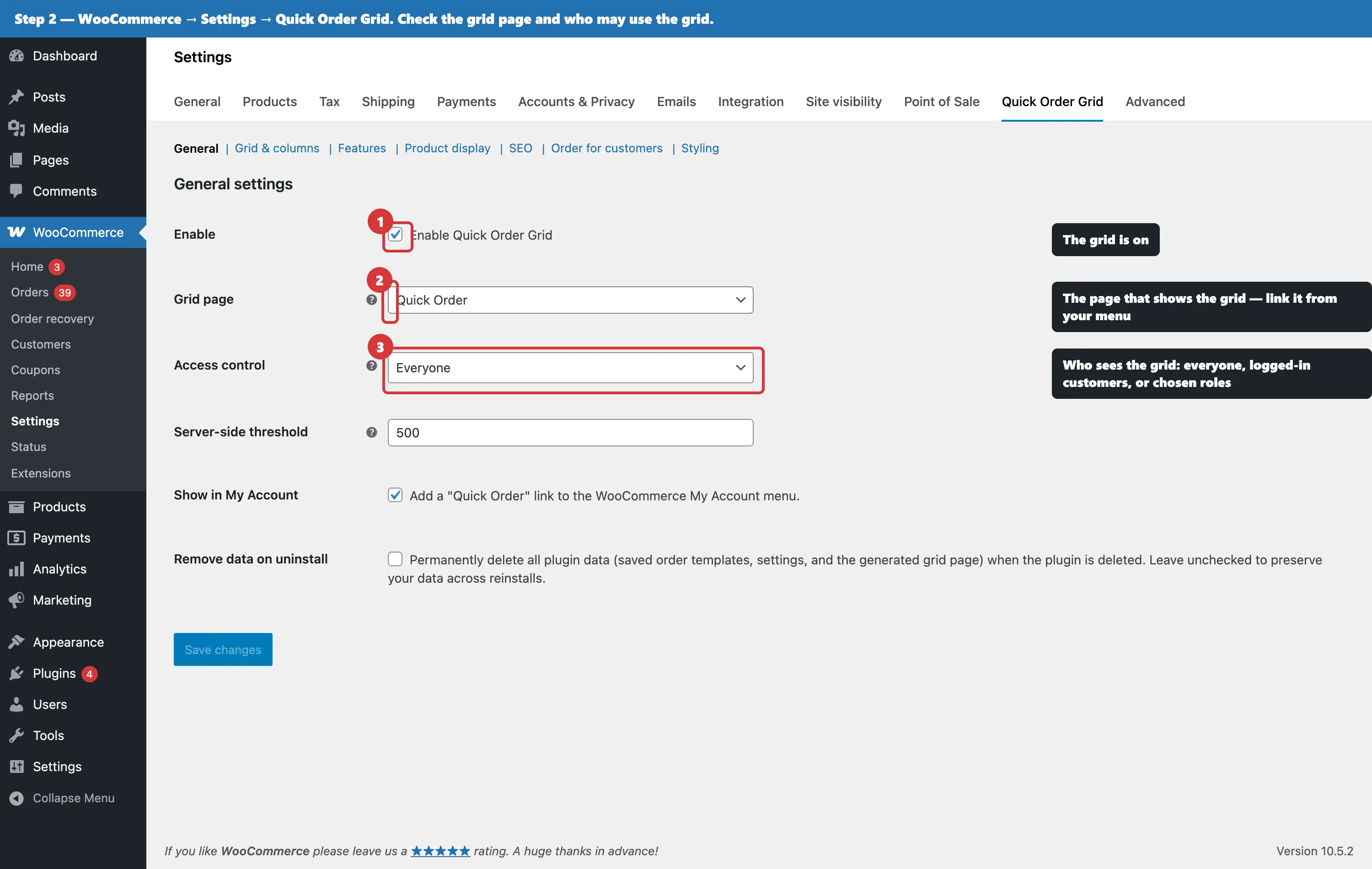
Step 1. Check the grid page
Activating the extension creates the page that holds the grid. Under WooCommerce, Settings, Quick Order Grid, confirm that page and decide who may use the grid at all: everyone, logged in customers, or selected roles.
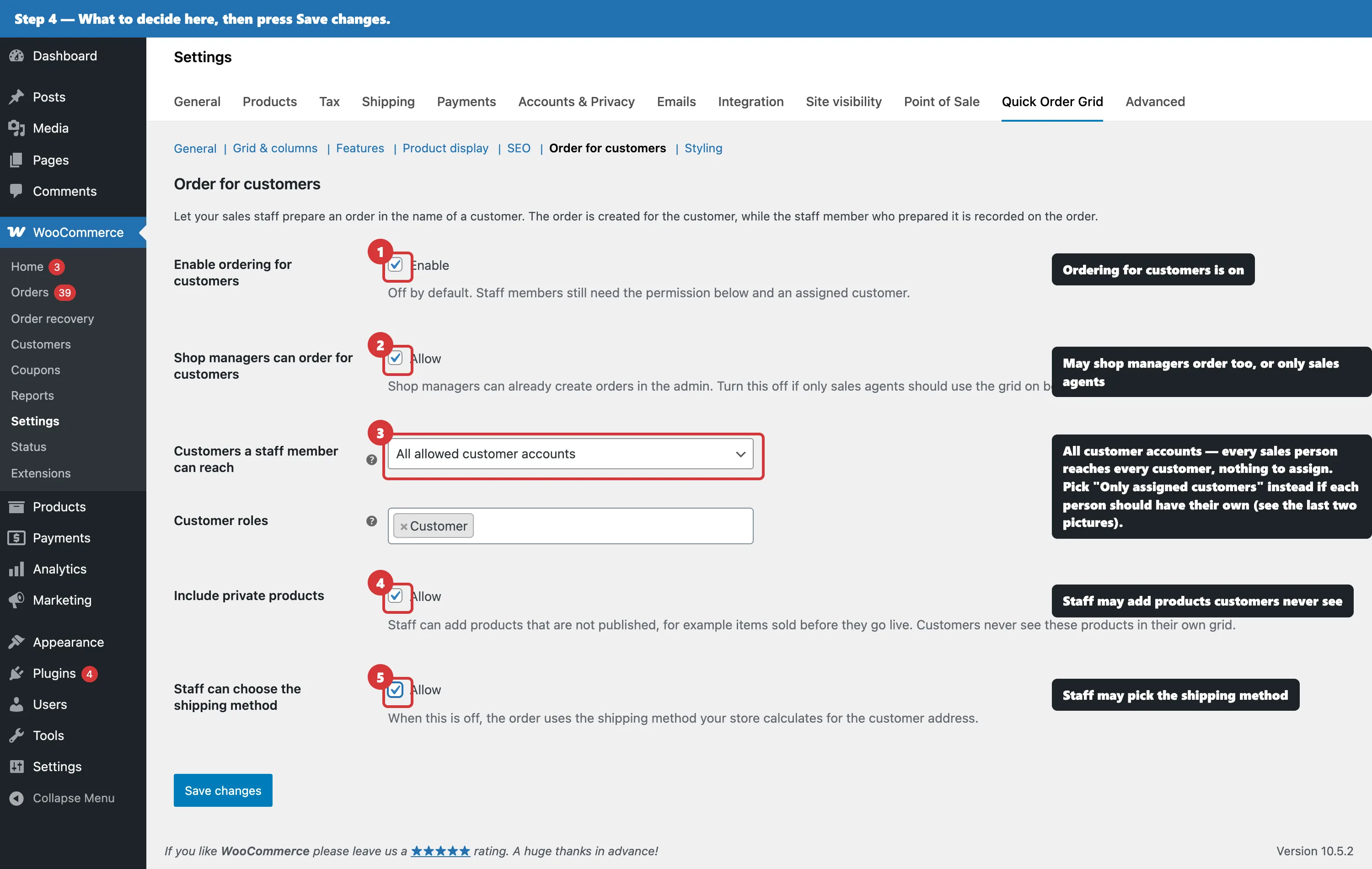
Step 2. Turn on ordering for customers
The Order for customers tab holds the whole feature. Five decisions:
- Enable ordering for customers. Off by default.
- Shop managers can order for customers. Switch it off if only sales agents should.
- Customers a staff member can reach. *All allowed customer accounts* means anyone who orders can reach any customer and nothing needs assigning. *Only assigned customers* gives each rep their own list.
- Include private products. Staff can add products the customer never sees, for example a new collection sold in before it goes live.
- Staff can choose the shipping method. Otherwise the order takes whatever your store calculates for the customer's address.
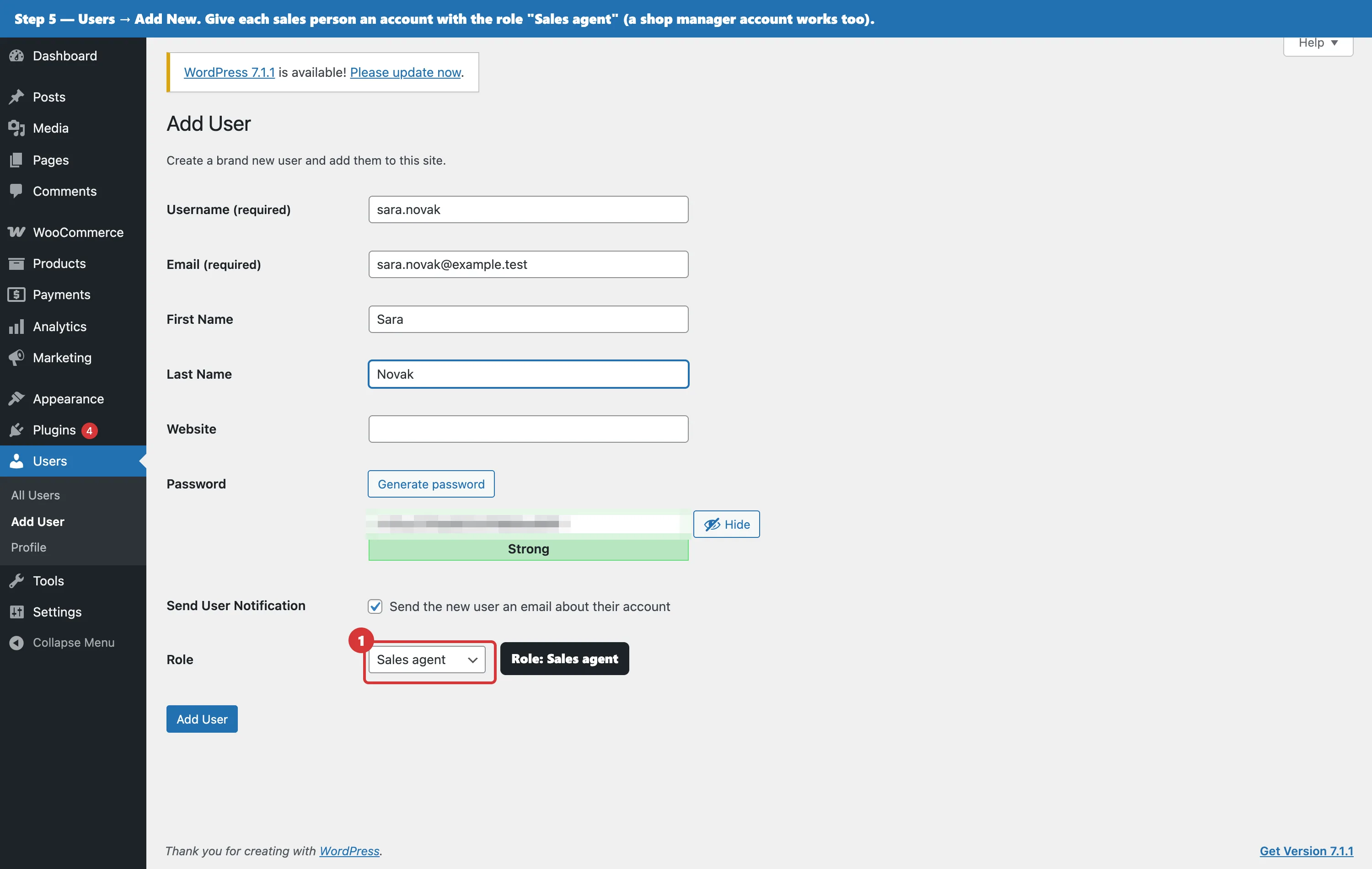
Step 3. Give the right people an account
Your own shop manager or administrator login is enough to start. For everybody else, add a user under Users, Add New with the Sales agent role. It grants no admin access. Just the right to order for customers on the storefront.
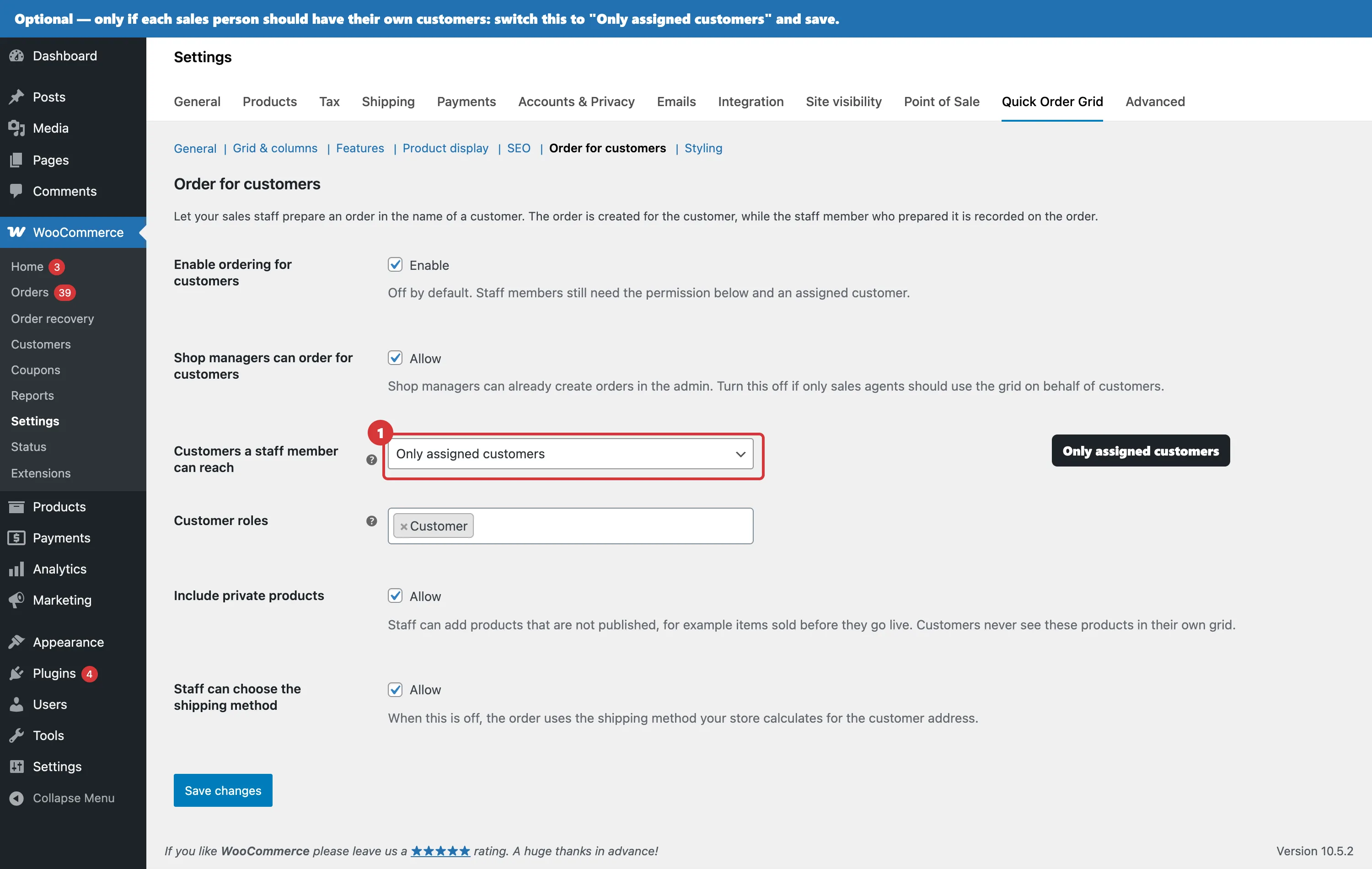
Step 4, optional. One sales person per customer
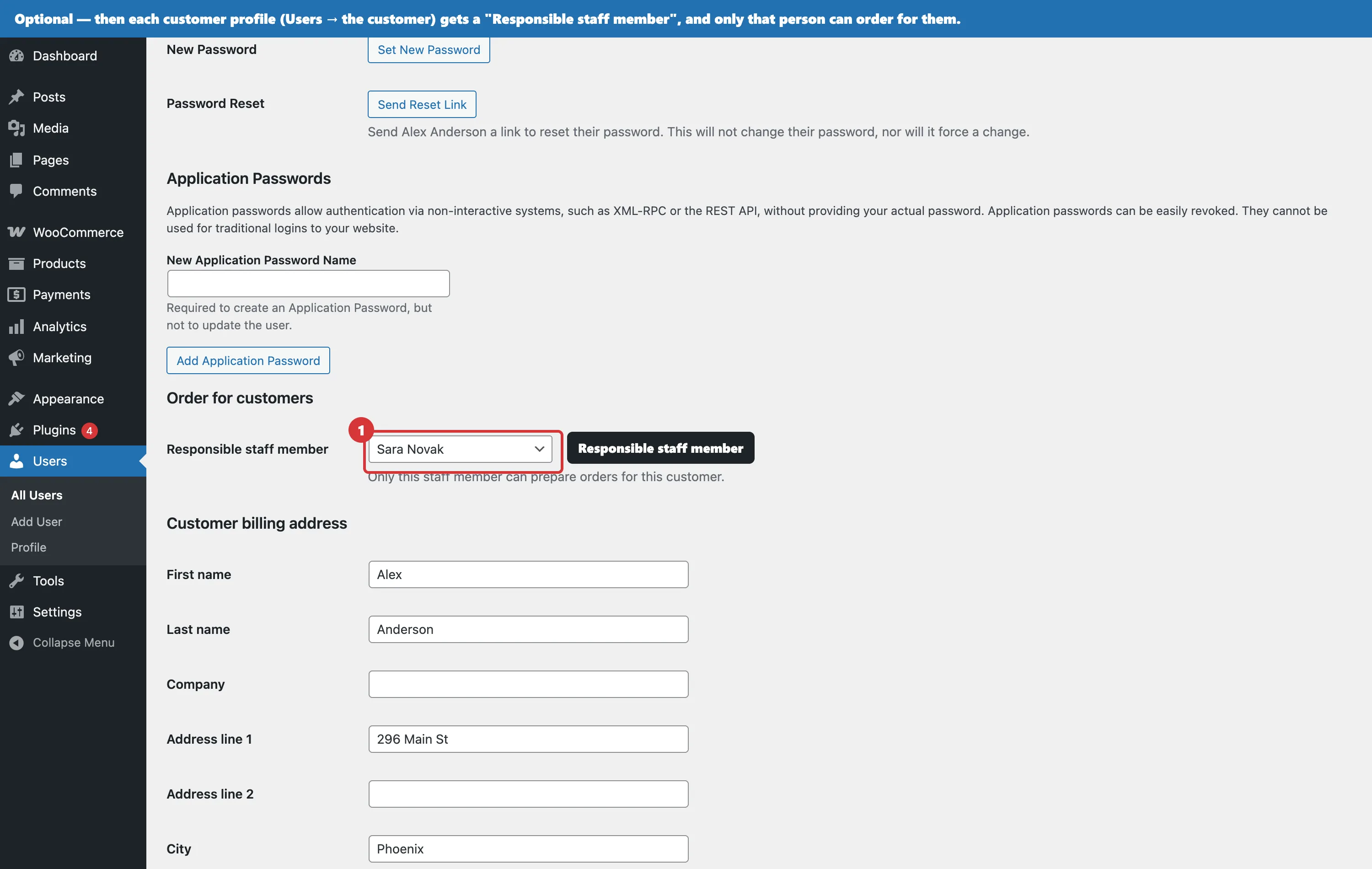
If each rep should only reach their own accounts, set Customers a staff member can reach to *Only assigned customers*, then open each customer profile and pick the Responsible staff member. Nobody else can prepare an order for that customer.
The daily routine
Pick the customer
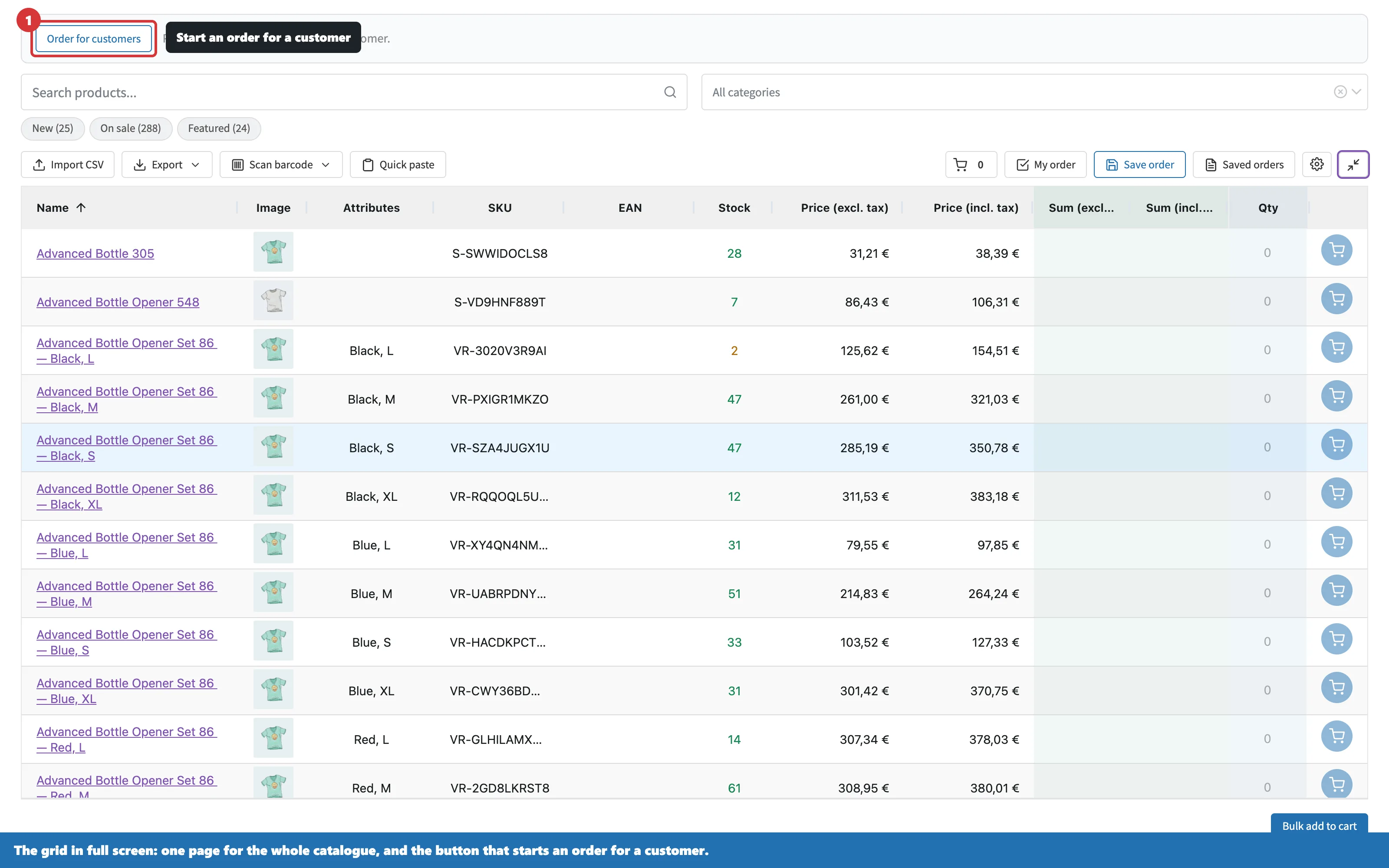
On the storefront the grid now has an Order for customers button. The staff member picks the customer and the whole page switches into that customer's context.
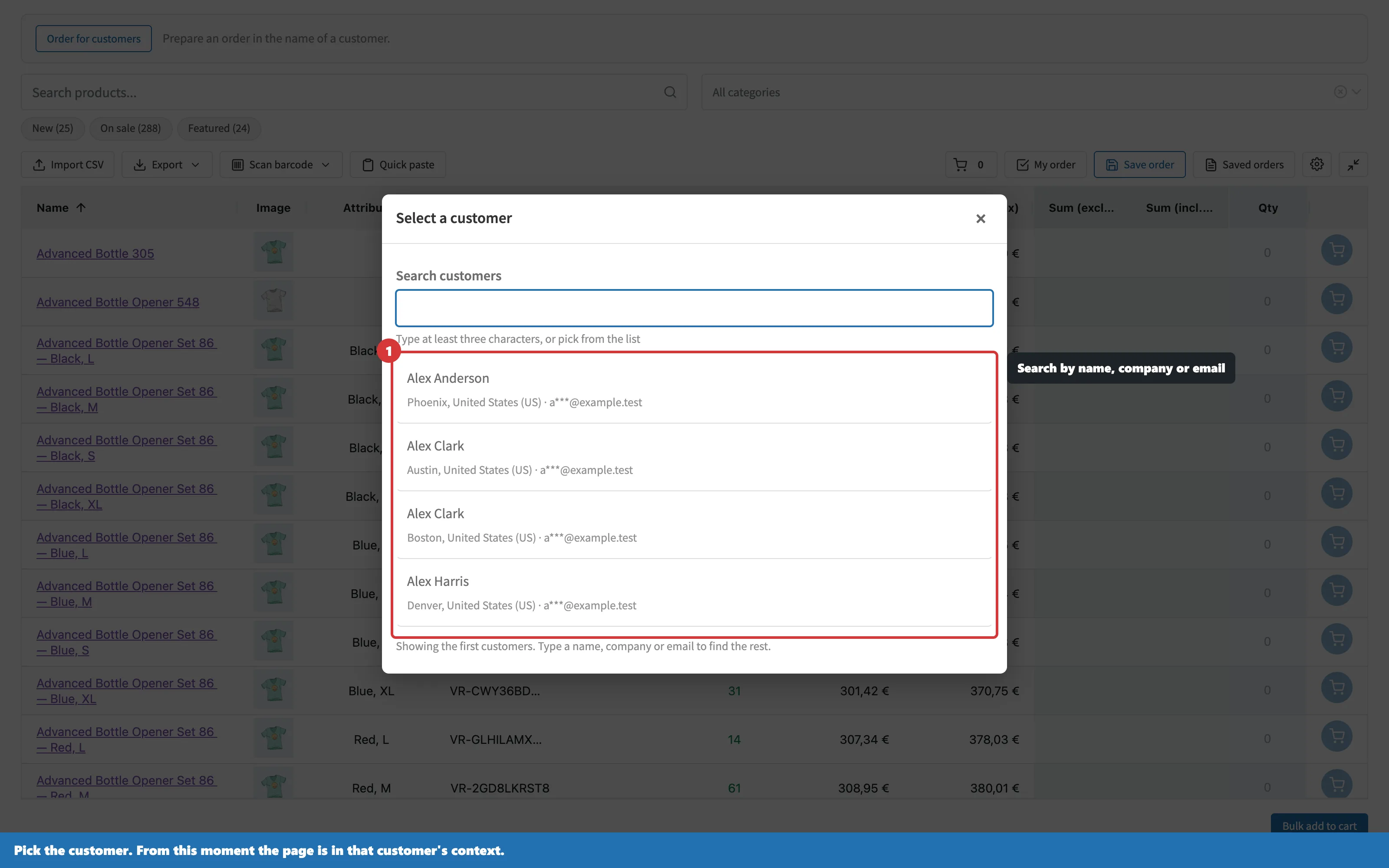
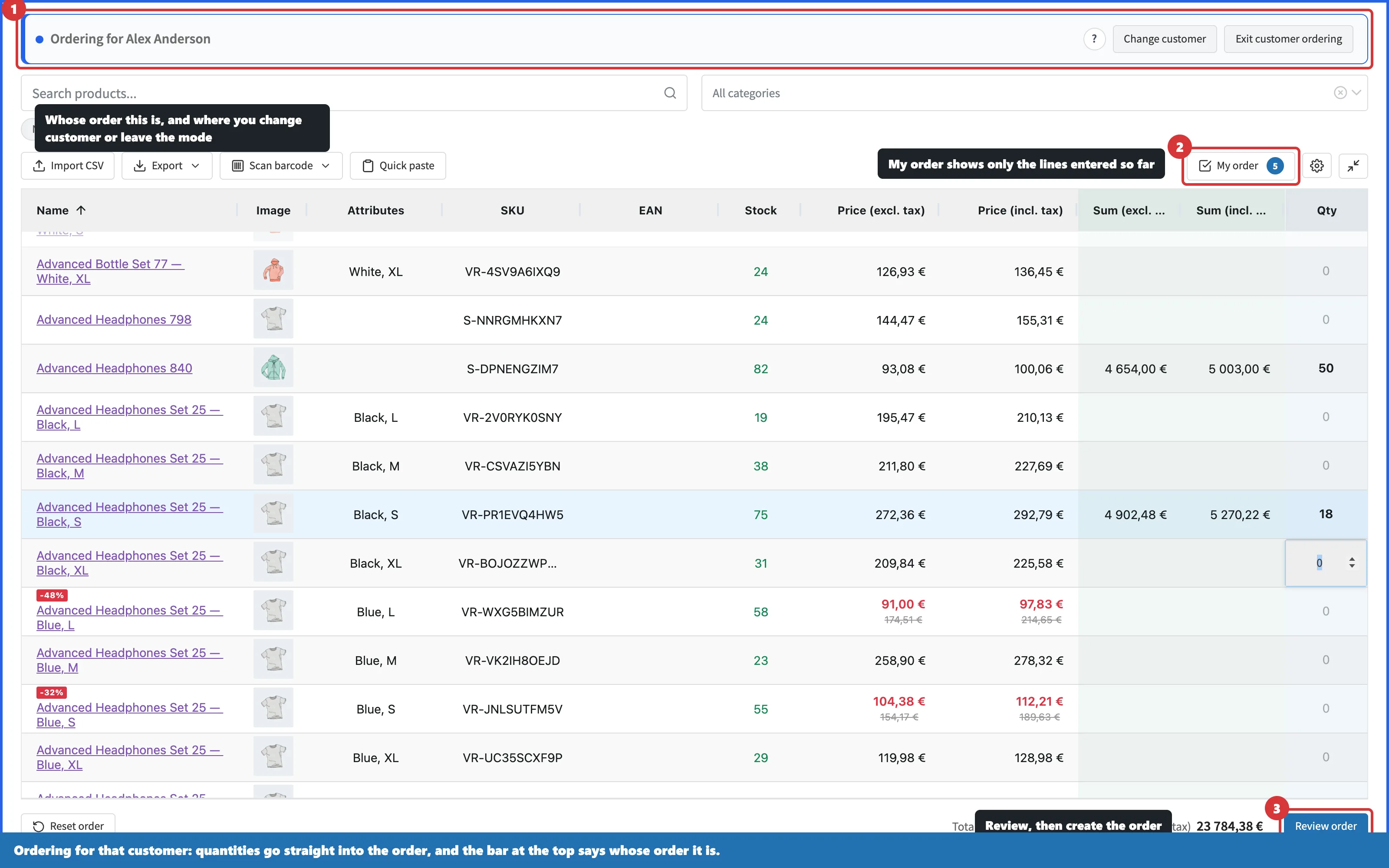
A bar at the top says whose order this is. From then on, every quantity typed goes into that order.
Fill the order whichever way is fastest
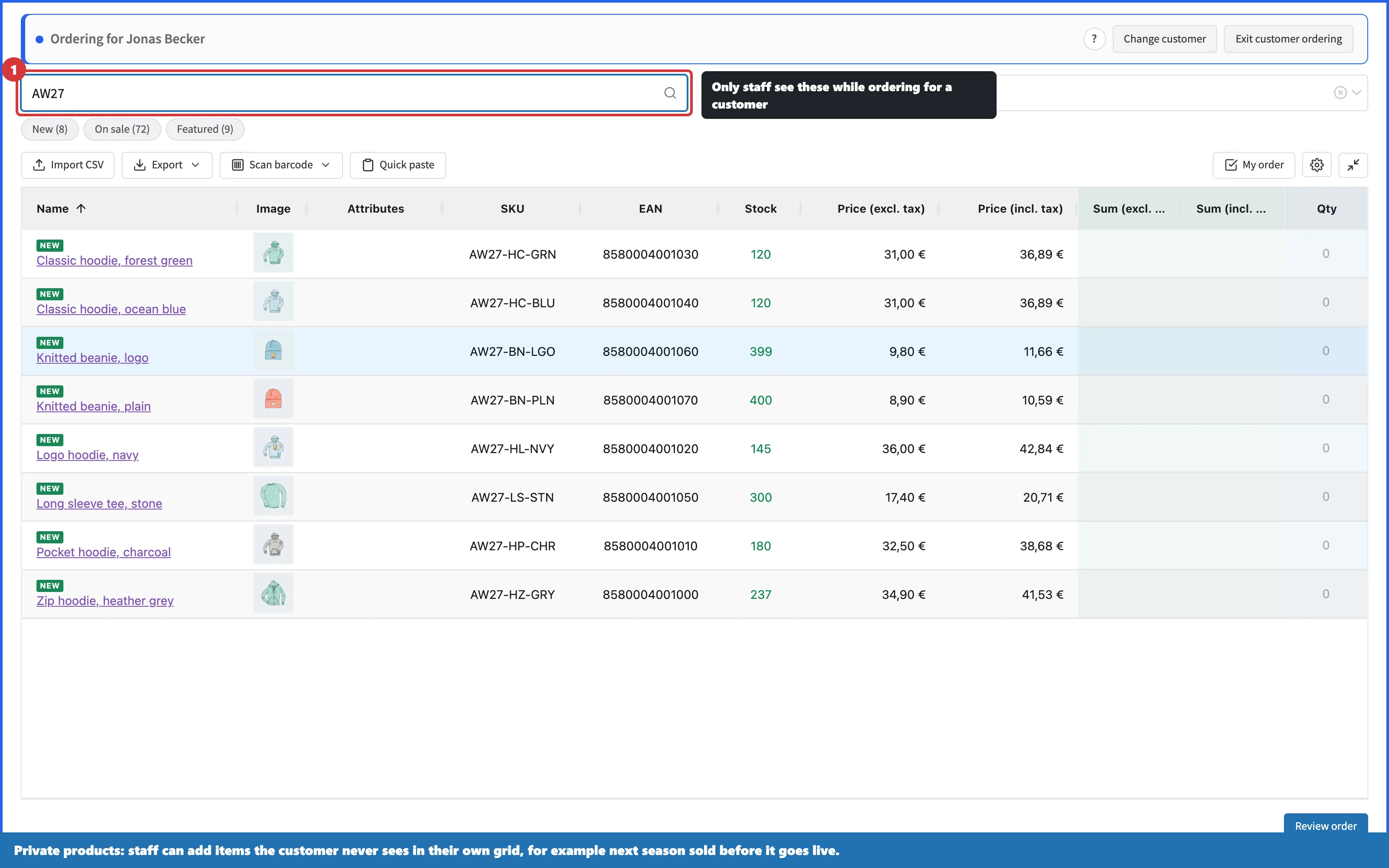
One page, the entire catalogue. From here the staff member can:
- type a quantity next to any product,
- search by name, SKU or barcode and drop the line straight into the order,
- paste a list of SKUs from an email or a spreadsheet,
- import a CSV with SKUs and quantities,
- scan with a hardware barcode scanner or the phone camera.
If you allowed it, private products are in there too, so a rep can sell next season's collection before it is public.
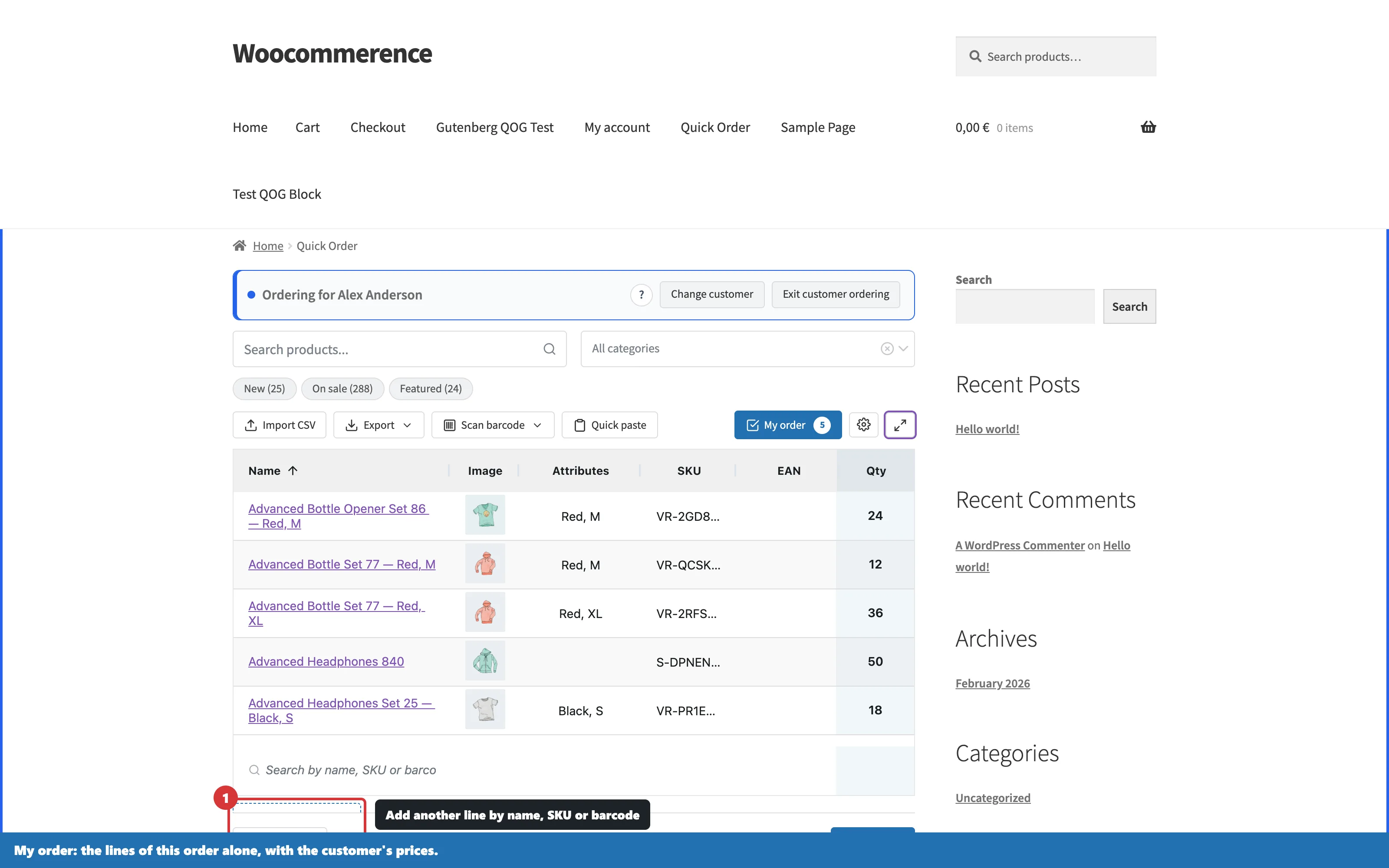
The My order view shows only the lines of this order, at the customer's prices, and a search line at the bottom adds another product by name, SKU or barcode without leaving the order.
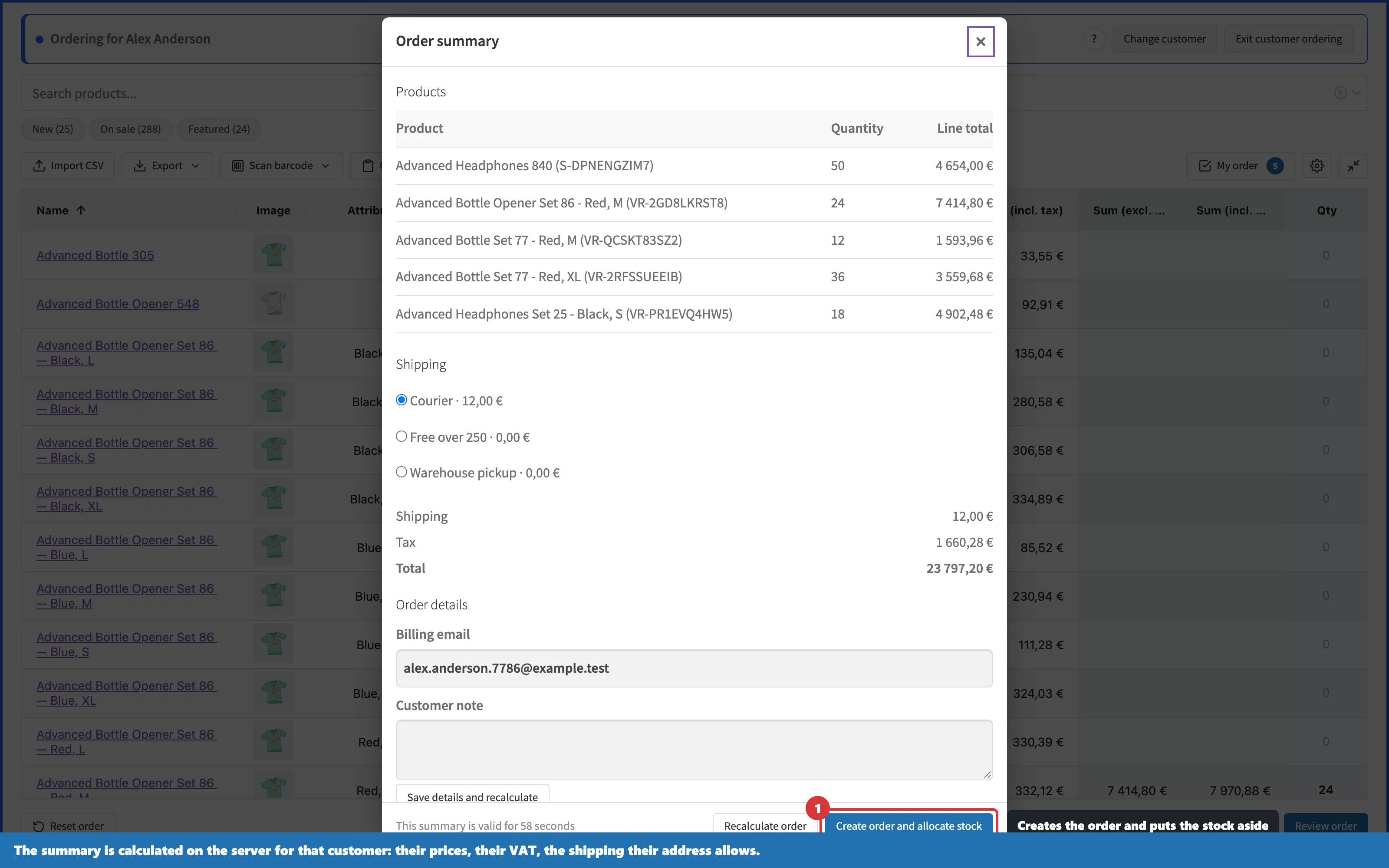
Review, then create the order
The summary is calculated on the server for that customer: their prices and quantity breaks, their VAT, the shipping methods their address allows. Confirming creates the order on hold with the stock reduced. The units are held. Not promised, held.
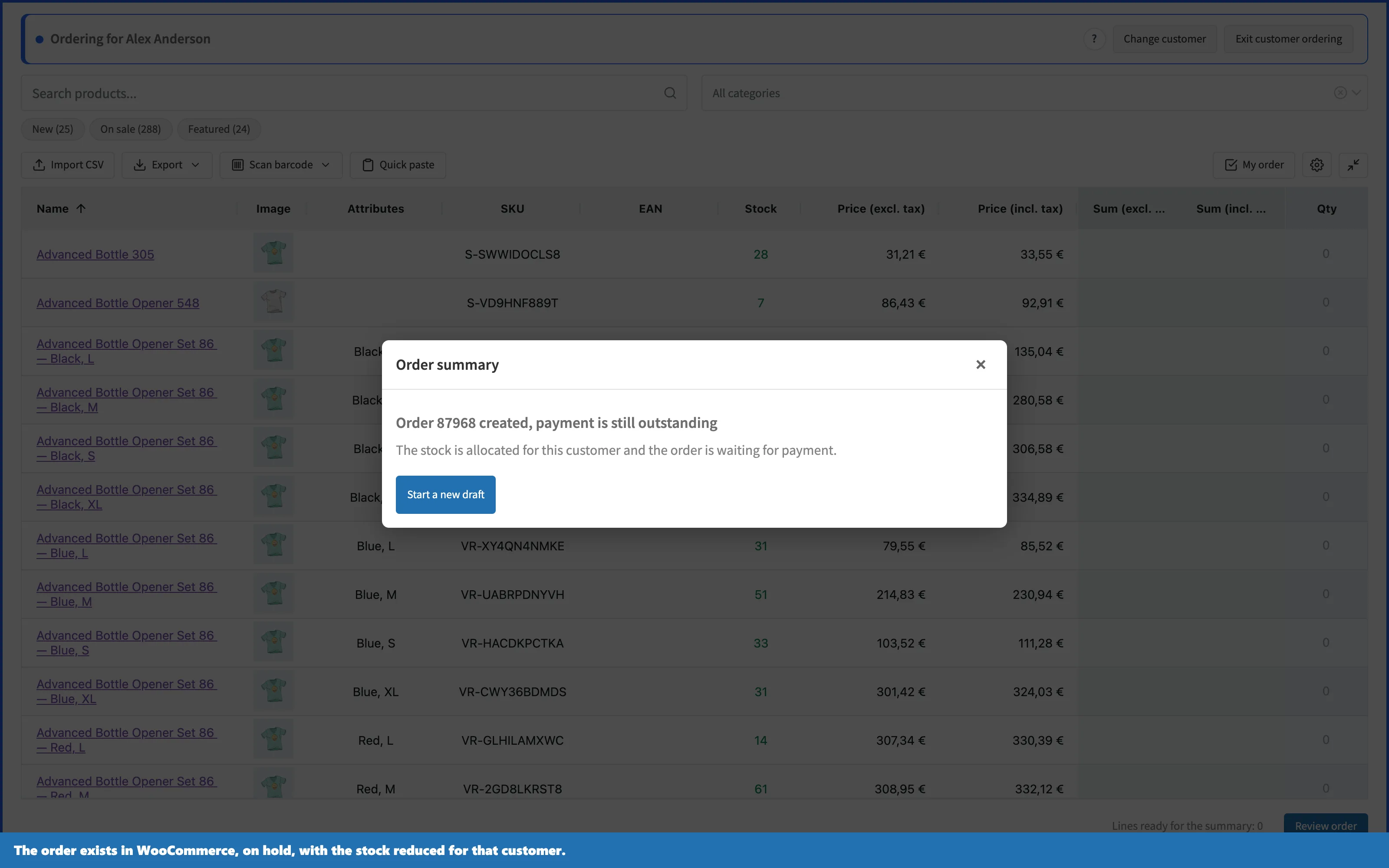
Back in the admin it is an ordinary WooCommerce order, and it records who prepared it. The Orders list filters down to orders prepared by staff.
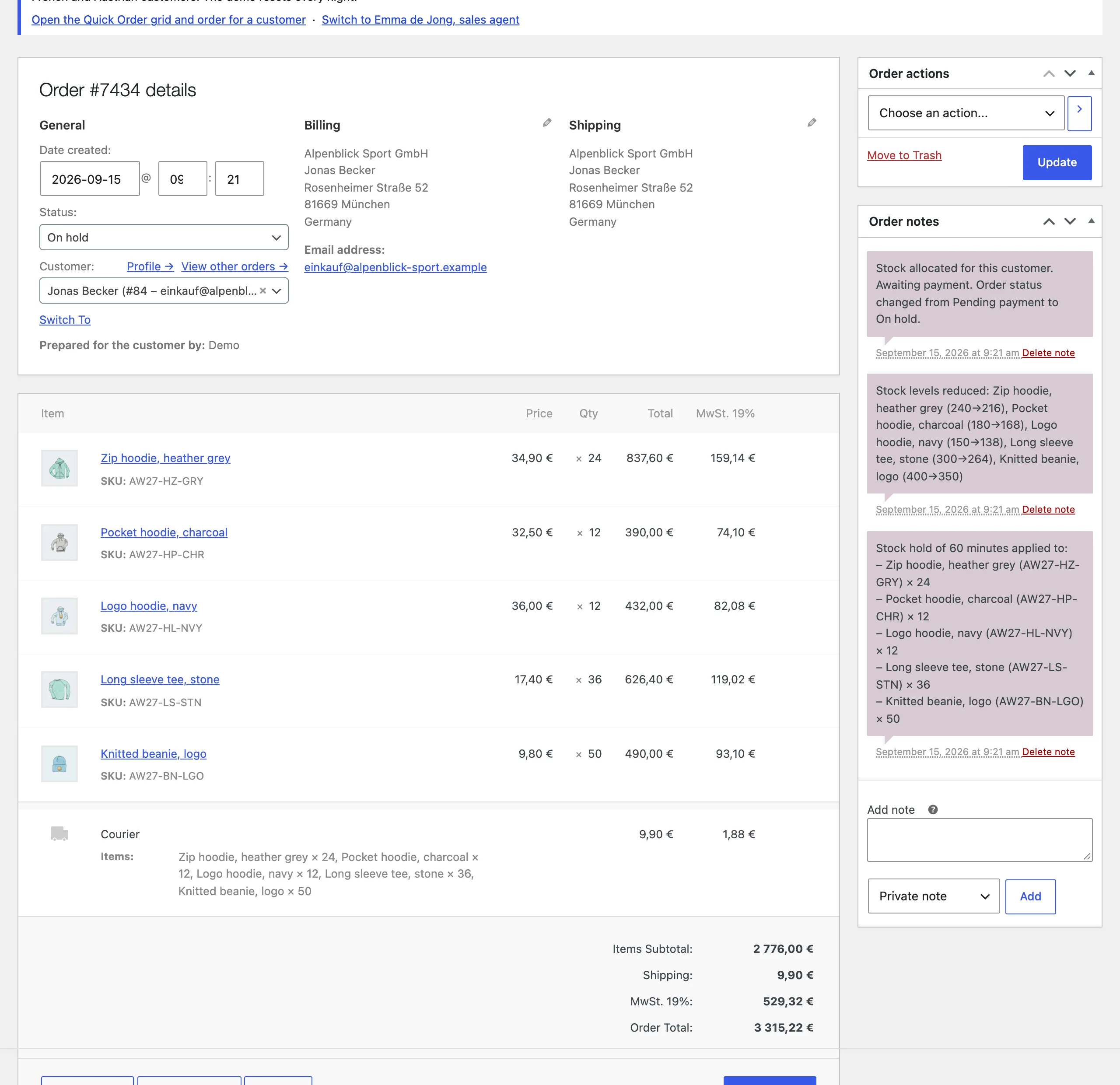
Five situations this covers
The phone call. The customer reads out SKUs and quantities. The staff member types them into the grid while listening, reads the total back, and the order exists before the call ends.
The Monday spreadsheet. A purchasing manager sends the same Excel or CSV list every week. Import it, check what matched, confirm. Nobody retypes forty lines.
The rep in the customer's warehouse. A tablet, the customer's own shelves, a scanner or the phone camera. Scan, quantity, next. The order is priced before the rep is back in the van.
Customer service rescuing a half finished order. The customer started an order and gave up. Support picks the customer, rebuilds it in one screen and confirms.
The repeat order. Most B2B orders are last month's order with three changes. Staff can save a recurring list as a named order template, reload it next time and adjust the numbers.
The details that decide, and the mistakes that undo them
Anyone can put a "create order" button on a page. These are the parts that make the order right, the questions to put to any vendor (us included), and the shortcuts that break them.
Whose prices. The order has to be priced for the customer, not for the person typing: their role based or customer specific prices, their quantity breaks, their tax status and country. Pricing that is only recalculated at checkout is no good, because a prepared order never goes through the customer's checkout. The shortcut is typing a discounted line price into the Add order screen by hand. It works until someone forgets, and the customer notices the invoice, not the intention.
Whose tax and shipping. VAT follows the customer's address and status. The shipping choices are the ones their address allows, at the store's rates. Decide up front whether staff may choose the shipping method or the store always calculates it. Both are defensible. Silence is not.
Stock. If confirming does not reduce stock, two reps can sell the same 50 units on the same afternoon. Allocation at confirmation is what makes the promise real.
Who prepared it. Each order should name the staff member who made it, and the Orders list should filter by that. Letting staff log in as customers for daily work is the shortcut here: quick to set up, and six months on nobody can say which orders a person entered.
Who reaches which customer. Settle early whether everyone reaches everyone or each rep has their own accounts. Changing it later means visiting every customer profile.
Private products. Selling in a preview collection is normal B2B. It has to stay invisible to customers in their own grid, their exports and their search.
Interrupted confirmations. A timeout between the click and the answer must not leave the shop with half an order, or two of them. Ask any vendor what happens when the connection drops at that exact moment. The pause before they answer tells you plenty.
Before you go live: a short checklist
- Ordering for customers is on, and the right roles can use it.
- The scope is set: all customers, or assigned only, with the assignments done.
- A test order for a real customer account gives the prices, VAT and shipping you expect.
- Stock is reduced when the order is created.
- The Orders list shows who prepared the order.
- Staff know that confirming creates an order on hold, and what your team does with it next.
Ordering for customers in B2B Quick Order Grid: the facts
- What it is: the order for customers mode of the B2B Quick Order Grid extension for WooCommerce, sold on the WooCommerce Marketplace. Staff place orders on behalf of customers from the quick order grid on the storefront.
- Who uses it: shop managers and users with the Sales agent role, which grants no admin access.
- What it produces: an ordinary WooCommerce order on the customer's account, at the customer's prices, quantity breaks, VAT and shipping, created on hold with stock reduced, recording which staff member prepared it.
- Entry methods: typed quantities, search by name, SKU or barcode, pasted SKUs, CSV import, barcode scanner or phone camera, saved order templates.
- Requirements: an existing customer account, physical simple or variable products with managed stock, whole quantities, shop currency, core WooCommerce tax and shipping. WordPress 6.2, PHP 7.4 and WooCommerce 8.0 or later, tested up to WooCommerce 11.1.
- Not covered: virtual or downloadable products, backorders, coupons, fees, more than 100 lines per prepared order, automated tax services (the mode switches itself off), commissions.
- Also: HPOS compatible, interrupted confirmations go to WooCommerce, Order recovery, 13 languages, WordPress privacy export and erasure.
Try it before you buy it
Walk the whole flow on the demo store first: pick a customer, paste a list, scan a barcode with your phone, confirm, then open the order in the admin and check who it says prepared it. The extension itself is on the WooCommerce Marketplace.
Related reading: how to speed up wholesale ordering · B2B ordering best practices · reduce B2B order processing time
Frequently asked questions
Does WooCommerce have a native way to place an order on behalf of a customer?
Yes. WooCommerce includes a manual order screen under WooCommerce, Orders, Add order, where an administrator or shop manager picks the customer, adds line items, sets a status and saves. It suits the occasional phone order. It does not apply cart pricing rules or quantity breaks, and stock only moves once the order reaches a status that reduces it.
How do I place an order on behalf of a customer in WooCommerce?
In WooCommerce there are four ways: the native Add order screen in the admin, a shop as customer plugin, a B2B suite with a sales agent module, or a quick order grid with an order for customers mode such as the B2B Quick Order Grid extension. With B2B Quick Order Grid, a staff member opens the grid on the storefront, clicks Order for customers, picks the customer account, fills in quantities and confirms. The order lands on the customer's account at the customer's prices, with stock reduced.
How do I create a manual order or phone order in WooCommerce?
In the WooCommerce admin, go to WooCommerce, Orders, Add order, choose the customer, add the products as line items, set the status (pending payment if the customer still has to pay) and save. That is enough for a phone order of a few lines. For long phone orders, a quick order form on the storefront that a staff member fills for the customer is faster, and it prices each line for that customer.
Can a shop manager place an order for a customer in WooCommerce?
Yes. In WooCommerce the shop manager role can create orders in the admin through WooCommerce, Orders, Add order. The B2B Quick Order Grid extension adds a setting called Shop managers can order for customers, so a store can let shop managers order from the storefront grid or restrict that to the Sales agent role.
Can a sales rep be limited to their own customers?
Yes. In the B2B Quick Order Grid extension, set Customers a staff member can reach to Only assigned customers, then choose a Responsible staff member on each WooCommerce customer profile. A sales agent can then prepare orders only for the customers assigned to them.
Do the customer's wholesale or negotiated prices apply when staff order for them?
Yes. The B2B Quick Order Grid extension calculates the order summary on the server in the customer's own context, so the customer's role based or customer specific prices, quantity breaks and tax status apply, not those of the staff member typing. A third party pricing plugin has to price outside the cart as well; the extension's settings screen names any pricing plugin it cannot verify.
Are tax and shipping calculated for the customer rather than the staff member?
Yes. When staff order for a customer with the B2B Quick Order Grid extension, VAT follows the customer's address and tax status through the WooCommerce tax engine, and the shipping methods offered are the ones WooCommerce allows for the customer's address, at the store's rates. A setting decides whether staff may pick the shipping method or the store always calculates it.
Is stock reserved when a sales rep creates an order for a customer?
Yes. The B2B Quick Order Grid extension creates the WooCommerce order with the on hold status and the stock reduced at the moment of confirmation, so the units are held for that customer instead of staying on sale.
What happens if the connection drops while the order is being created?
The confirmation is not repeated blindly, so no duplicate order is created. The B2B Quick Order Grid extension lists the interrupted operation under WooCommerce, Order recovery in the WordPress admin, where an administrator closes it according to what really happened.
Do sales reps need admin access to WooCommerce to order for customers?
No. The B2B Quick Order Grid extension adds a Sales agent WordPress role that grants no access to the WordPress admin, only the right to order for customers on the storefront. A store can also allow the existing shop manager role to order for customers.
Does it work on a tablet or phone, and with a barcode scanner?
Yes. The B2B Quick Order Grid extension runs in the browser on a tablet or phone, and a rep can add lines with a hardware barcode scanner or by scanning with the phone camera.
Can I import a CSV or paste a list of SKUs into a customer's order?
Yes. While ordering for a customer in the B2B Quick Order Grid extension, a staff member can import a CSV file with SKUs and quantities, or paste a list of SKUs copied from an email or spreadsheet. The same import works when a customer orders for themselves.
Can staff order private products the customer cannot see?
Yes, when the Include private products setting is on. The B2B Quick Order Grid extension then offers private WooCommerce products to staff ordering for a customer, for example a collection sold in before launch, and those products never appear in the customer's own grid, exports or search.
Does ordering for customers work with High Performance Order Storage (HPOS)?
Yes. The B2B Quick Order Grid extension creates orders through WooCommerce itself, so it works with High Performance Order Storage (HPOS) and with the legacy post based order tables.
How do I see which sales person prepared an order in WooCommerce?
Each order created through the B2B Quick Order Grid extension records the staff member who prepared it, and that name shows on the order in the WooCommerce admin. The WooCommerce Orders list can be filtered to show only orders prepared by staff.
Does the B2B Quick Order Grid extension calculate sales rep commissions?
No. The B2B Quick Order Grid extension records who prepared each order but has no commission engine. Stores that need commission calculations should look at a B2B suite with a sales agent and commission module.
What does the order for customers mode not support?
The order for customers mode in the B2B Quick Order Grid extension does not cover virtual or downloadable products, backorders, coupons or fees, more than 100 lines per prepared order, or commissions, and it switches itself off when an automated tax service replaces the WooCommerce tax engine. It covers physical simple and variable WooCommerce products with managed stock, in whole quantities, in the shop currency.
How is this different from a shop as customer or login as customer plugin?
A shop as customer plugin logs a staff member into the WooCommerce storefront as the customer, so the order is placed by the customer's own account and nothing records that staff made it. The B2B Quick Order Grid extension keeps the staff member logged in as themselves, as a Sales agent or shop manager, and creates the order on the customer's account while recording who prepared it. Shop as customer is the better tool for seeing exactly what a customer sees; ordering from the grid is built for entering real orders every day, with stock reduced at confirmation.
Can I prepare an order for a new customer who has no account yet?
No. The B2B Quick Order Grid extension prepares orders only for existing WordPress customer accounts, because the prices, the tax and the delivery address all depend on the account. Create the customer account in WooCommerce first, then order for it.
Can I edit the order afterwards?
Yes. An order created through the B2B Quick Order Grid extension is an ordinary WooCommerce order, so it can be edited in the usual WooCommerce admin order screen like any other.
Does the customer get an email when staff create an order for them?
The WooCommerce order emails are held while the B2B Quick Order Grid extension writes the order and go out once the order is stored. The customer never receives an email about an order that failed halfway.
Can a staff member leave an order half finished and come back to it?
Yes. The B2B Quick Order Grid extension keeps the unfinished work as a draft for that customer, and the staff member can resume it later, including after a page reload.
Can I export a customer's order while preparing it?
Yes. An export taken while ordering for a customer in the B2B Quick Order Grid extension contains that customer's order lines at the customer's prices, in CSV, Excel, XML or a print view.
Is the interface translated?
Yes. The B2B Quick Order Grid extension ships in 13 languages, so a Dutch or German sales team sees the ordering screens in their own language.
Is ordering for customers covered by GDPR tools?
Yes. Prepared orders and staff drafts created by the B2B Quick Order Grid extension are included in the WordPress privacy export and erasure tools, so a data subject request covers them.
Which WordPress and WooCommerce versions does it need?
The B2B Quick Order Grid extension needs WordPress 6.2 or later, PHP 7.4 or later and WooCommerce 8.0 or later, and is tested up to WooCommerce 11.1.
Where can I buy the B2B Quick Order Grid extension, and what does it cost?
The B2B Quick Order Grid extension is sold on the WooCommerce Marketplace, where the current price is shown on the Marketplace listing. Ordering for customers is part of the extension, not a separate add-on.
Is there a demo of ordering for customers in WooCommerce?
Yes. There is a public live demo store running the extension on a real WooCommerce shop, so the order for customers flow can be tried before buying.
Related guides
How to speed up wholesale ordering on your store (5 proven methods)
B2B buyers reorder, they don't browse. Five proven methods to speed up wholesale ordering, a one-page order grid, CSV & SKU import, barcode scanning, saved templates and account pricing, with a before/after and FAQ.
Read guide GuideB2B ordering best practices for e-commerce stores in 2026
What wholesale buyers expect from online ordering in 2026 and the B2B ordering best practices that deliver it: one-page bulk ordering, self-service reorder, account catalogs and pricing, accurate live stock.
Read guide PlaybookHow to cut your B2B order-processing time to near zero
Most B2B order-processing time is yours, not the buyer's, re-keying emailed orders. How to cut it: self-service ordering, CSV import, saved templates and one-click export.
Read guide