 WooCommerce extension
A bulk order form for WooCommerce, with ordering for customers built in
Quick Order B2B Grid (listed as B2B Quick Order Grid on WooCommerce.com) adds a bulk order form to your store. Customers type, paste, scan or import SKUs into one table and add the whole order to the cart. Your sales reps can place orders for their customers in the same form.
$79 per year · 30-day money-back guarantee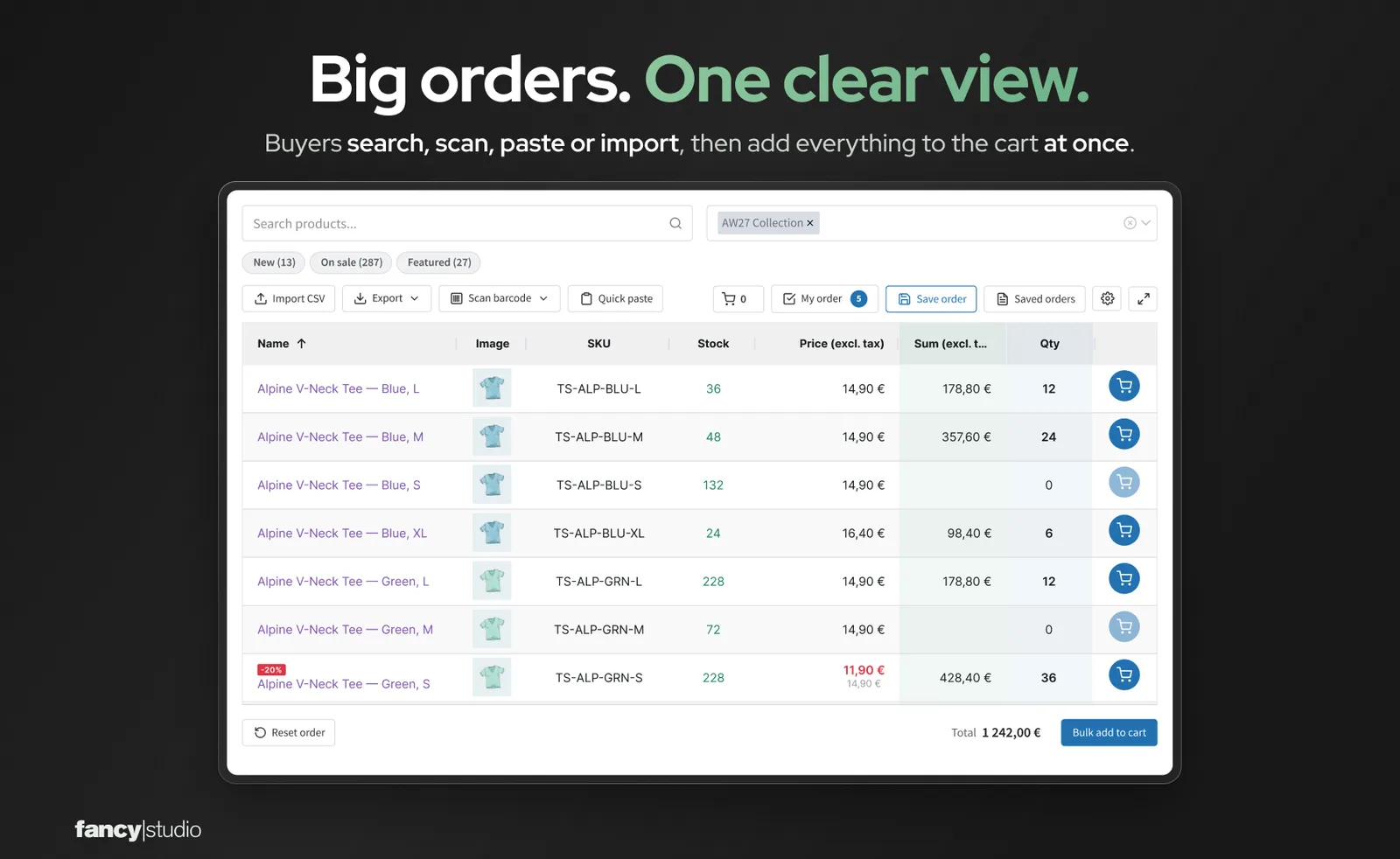
The standard WooCommerce shop is built for browsing. Wholesale customers reorder
In a standard WooCommerce store, customers add products from shop and product pages, usually one at a time. A customer reordering dozens of products from last week's list needs them all in one table.
Standard WooCommerce shop
- Products are added from shop and product pages, usually one at a time
- Sizes and colours of a variable product are picked on its product page
- No built-in SKU paste, CSV upload or barcode input for customers
- Phone and email orders are entered by an admin or shop manager in WP Admin
Quick Order B2B Grid
- One bulk order form with your products in a table
- Type, paste, scan or import SKUs, then add the whole order to the cart
- The normal WooCommerce cart and checkout
- Sales reps order for their assigned customers in the same form
Four ways to fill an order
Wholesale customers rarely browse. They come with last week's order, a spreadsheet or a shelf to restock.
Search
Type a product name, SKU or barcode. Filter by category, use the New, On sale and Featured filters, or filter by brand in the column header.
Quick paste
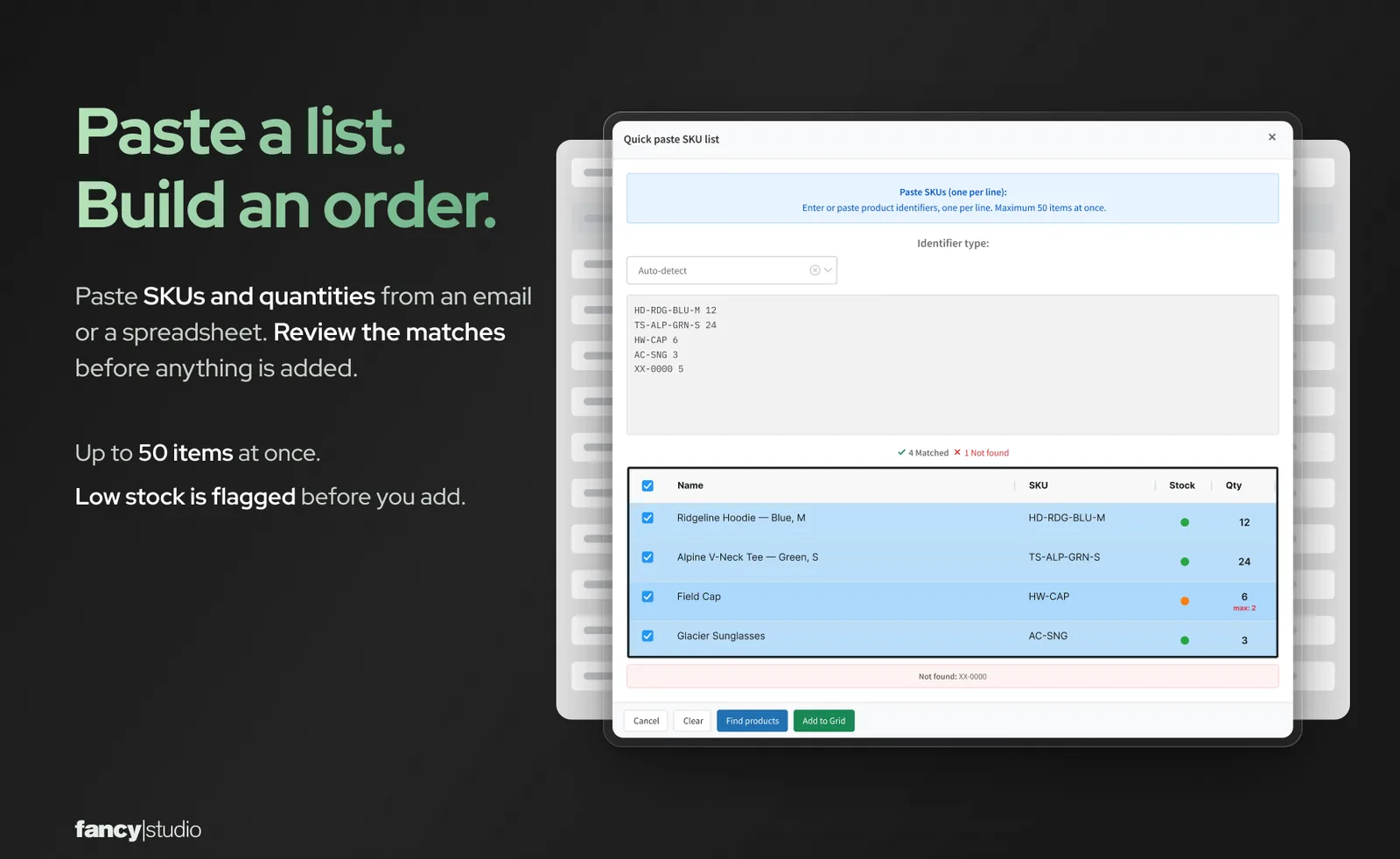
Paste up to 50 lines of SKU and quantity at a time. Matched and unmatched codes are shown before anything is added.
CSV import
Upload a CSV, TSV or TXT file and map the SKU and quantity columns. Excel users save their sheet as CSV first.
Barcode scanning
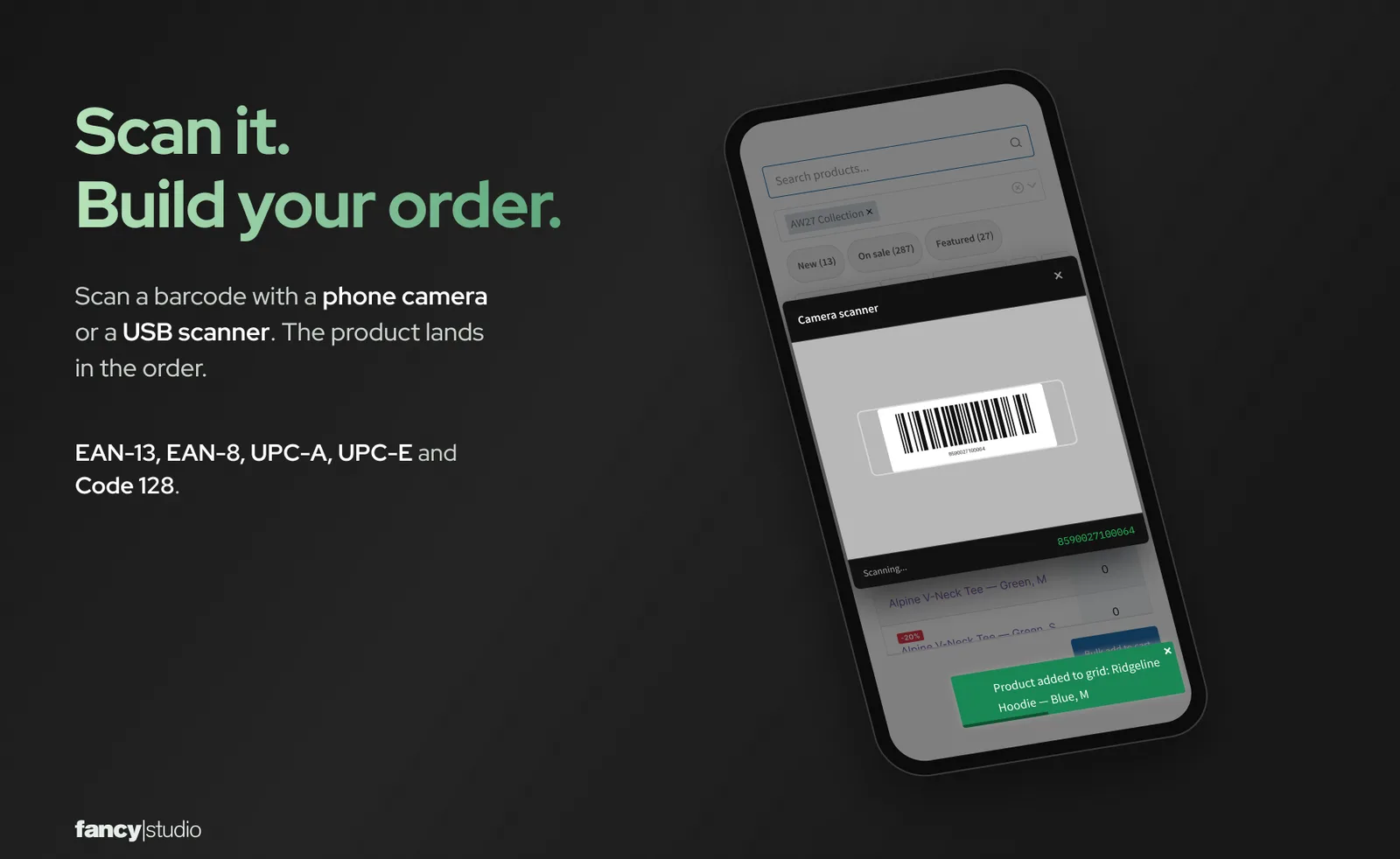
Scan with a phone, tablet or laptop camera, or a USB or Bluetooth scanner. EAN-13, EAN-8, UPC-A, UPC-E and Code 128.
Your team places orders on behalf of customers
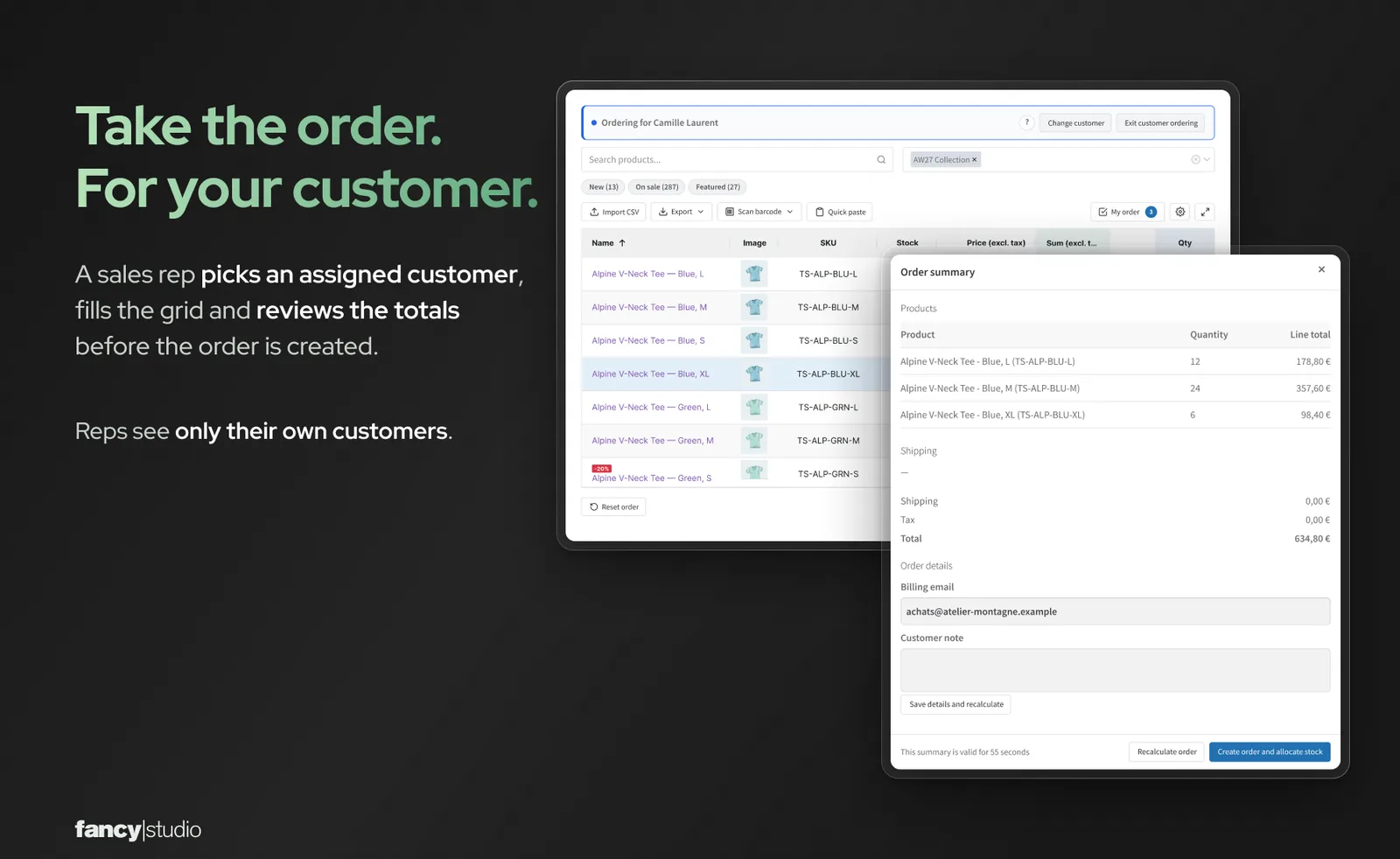
Some customers will always phone or email their order. With ordering for customers turned on, a sales rep picks a customer (by default, one assigned to them), fills in the same order form and reviews a summary before the order is created. Reps stay signed in as themselves, so nobody logs in as the customer and the customer's account, session and cart are left alone.
Prices, quantity breaks, taxes and shipping are recalculated on the server for that customer. Confirming creates an order on hold with the stock reduced, and the order shows which staff member prepared it. Private products can be added to a customer's order when you allow it.
You assign customers to staff and choose which staff can use the mode. It is off by default and deliberately narrow: physical simple and variable products with managed stock, whole quantities, your store currency, core WooCommerce tax and shipping, and an offline payment method. Four ways to order on behalf of a customer in WooCommerce, compared.
Next week's order starts from this week's
Saved order templates
Customers save their usual order, such as "Weekly restock", load it next time and adjust the quantities. Logged-in customers keep templates in their account.
Export the order
Download the order as CSV, Excel (XLSX) or XML, or open a print view and save it as a PDF.
My order view
Shows only the lines with a quantity, so customers can check the order before it goes to the cart.
Add another line
In My order, type a product name, SKU or barcode and add it with its quantity, without scrolling the catalog.
Bulk add to cart
Every line with a quantity goes to the cart in one click, with a running order total. Quantity rules and stock are checked as customers type.
Access control
Open the form to everyone, to logged-in customers, or to selected roles such as your wholesale role.
Will it work with my store?
- Theme and editor
- Add the B2B Quick Order Grid block or the
[b2b_quick_order_grid]shortcode to any page. A Quick Order page is created on activation, and a live styling editor sets colors, spacing, borders and font size. - Prices
- The form reads each product's WooCommerce price for the current visitor, so pricing extensions that change WooCommerce prices are reflected.
- WooCommerce features
- Compatible with High-Performance Order Storage (HPOS) and the Cart and Checkout blocks.
- Variable products
- Show one row per variation, the parent product only, or both. Simple products work too.
- Large catalogs
- Above a product count you set, products load page by page as customers scroll.
- Languages
- Translated into 13 languages, including German, French, Spanish, Italian, Dutch and Polish. Right-to-left languages are supported.
- Requirements
- WordPress 6.2 or later, WooCommerce 8.0 or later, PHP 7.4 or later. Tested with WooCommerce 11.2.1.
- If you turn it off
- Your products, prices, cart, checkout and existing orders are standard WooCommerce and stay as they are.
What it does not do
- It does not set wholesale prices by role. It works alongside the pricing extension you use.
- It does not manage quotes or handle B2B registration.
- Ordering for customers does not calculate commissions or take online payment.
- Virtual and downloadable products, backorders, coupons and fees are not supported when ordering for a customer. The summary stops and says why.
- With WooCommerce Tax automated taxes switched on, ordering for customers turns itself off.
Live on your WooCommerce store in three steps
No code. A Quick Order page is created for you when you activate the plugin.
Install
Buy B2B Quick Order Grid on WooCommerce.com, then install and activate it. The Quick Order page is created on activation.
Set it up
In WooCommerce > Settings > Quick Order Grid, choose who can open the form, which columns show and how it looks.
Add your team
If your reps take phone or email orders, turn on ordering for customers, choose the staff and assign their customers.
Setup guide on WooCommerce.com: B2B Quick Order Grid documentation
Questions about the WooCommerce bulk order form
Yes. Reps stay signed in as themselves and pick the customer (by default, only customers assigned to them), so the customer's account, session and cart are not touched. Ordering for customers is off by default, and you choose which staff can use it.
Yes. The form reads each product's WooCommerce price for the current visitor, so pricing extensions that adjust WooCommerce prices are reflected. It does not set prices itself. When a rep orders for a customer, prices, quantity breaks, taxes and shipping are recalculated on the server for that customer. An administrator first allows the B2B pricing extension, and the settings screen names any plugin that prevents customer prices from being calculated reliably.
Yes. It is compatible with High-Performance Order Storage (HPOS) and the Cart and Checkout blocks. Products go to the normal WooCommerce cart and your normal checkout.
Above the product count you set (the server-side threshold), the form loads products page by page as customers scroll instead of loading the whole catalog at once. In our test store with 20,000 products, exporting the full catalog used about 150 MB of memory.
EAN-13, EAN-8, UPC-A, UPC-E and Code 128. Customers scan with the camera of a phone, tablet or laptop (the camera needs HTTPS) or with any USB or Bluetooth scanner that types the code like a keyboard. The scan is matched against the product's barcode or SKU.
Your store keeps working. Products, prices, the cart, checkout and orders are standard WooCommerce. The plugin keeps its own data (saved templates and settings) unless you turn on "Remove data on uninstall".
Give your wholesale customers and sales reps one order form
$79 per year, with product updates, customer support and a 30-day money-back guarantee.